100% Free Educational Self-Help Portal

Fix Printer Errors with DIY Guides

Clear, step-by-step walkthroughs to fix offline status, wireless network setups, driver updates, and print queue glitches.

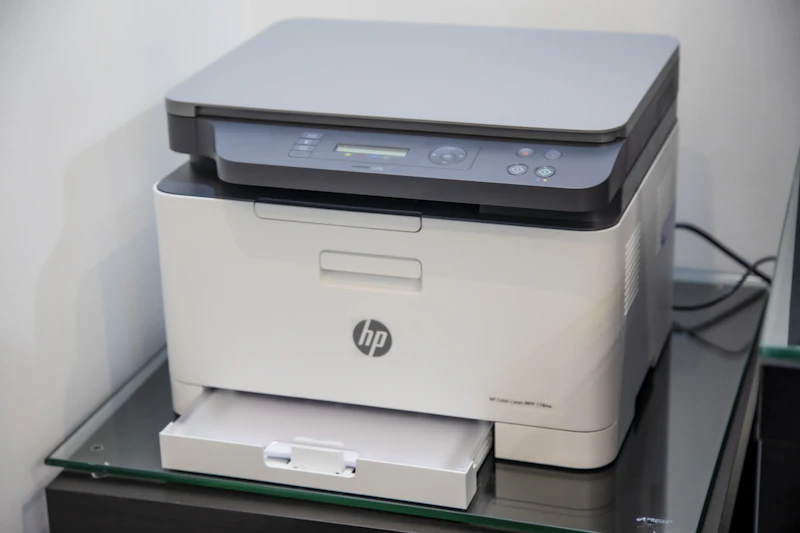
Printer setup and technical troubleshooting visual

No Software Downloads

Clean, readable text guides without downloading executable tools.

Windows & macOS

Tailored OS settings guides for all current operating systems.

Independent Self-Help

Neutral, step-by-step tutorials for generic network fixes.

Select Your Troubleshooting Guide

Explore step-by-step self-help articles to resolve common printer connectivity and operational issues.

Printer offline error troubleshooting
Connectivity

Printer Offline Fix

Learn how to toggle 'Use Printer Offline' mode off in Windows and macOS settings, clear lingering spools, and restore active status.

Read Walkthrough
Wireless Wi-Fi network setup
Networking

Wi-Fi & Wireless Setup

Re-establish printer network connections, assign static IP addresses, fix router 2.4GHz/5GHz band conflicts, and reset Wi-Fi cards.

Read Walkthrough
Stuck print queue spooler service
System Service

Stuck Print Spooler

How to use Windows Services Console or Command Prompt to stop, clear corrupted `.SHD`/`.SPL` files, and restart the spooler safely.

Read Walkthrough
Driver installation and software update
Software

Driver & Installation Errors

Resolve missing driver warnings, outdated INF files, USB detection failures, and corrupted device driver setups cleanly.

Read Walkthrough
Print quality and paper feed fix
Hardware

Print Quality & Blank Pages

Step-by-step guides for head alignment, nozzle cleaning routines, cartridge contact cleaning, and paper feed jam removal.

Read Walkthrough
TCP IP network port setup
Advanced

USB & Port Reconfiguration

Fix 'Standard TCP/IP Port' setup errors, fix USB virtual port routing issues, and configure shared network printers.

Read Walkthrough

No matching guides found

Try searching for keywords like "offline", "spooler", "driver", or "wifi".

Common Error Code Reference

Quick explanations for standard operating system status notifications.

Error 0x0000011b

Windows network print sharing security conflict. Check registry RPC settings guide.

Error 0x0000007c

Invalid spooler path or corrupted driver setup after an OS update.

Status: User Intervention

Paper jam, low ink notification, or open front cover sensor trip.

Standard DIY Troubleshooting Process

Follow these standard steps to systematically diagnose most printer issues.

01

Power Cycle

Restart printer, PC, and router to clear temporary cache memory.

02

Check Status

Verify 'Set as Default Printer' and uncheck offline toggles in OS settings.

03

Clear Queue

Delete stuck print jobs from the spooler folder preventing new tasks.

04

Reconnect Network

Verify Wi-Fi IP configuration or re-seat USB connection cables.

Frequently Asked Questions

Find answers to common printer connectivity, driver, and printing queue queries.

Why does my printer say offline when turned on?

This usually happens due to dropped Wi-Fi signals, outdated IP assignments, or the operating system enabling 'Use Printer Offline' mode after a power glitch or system update.

Where do I get official printer drivers?

Always download drivers directly from your official hardware manufacturer's support website (such as HP, Canon, Epson, or Brother) to ensure safety, compatibility, and stability.

Why are documents stuck in the print queue?

A single corrupted print job file in the operating system's spooler folder can lock the entire queue. Stopping the Print Spooler service and deleting temporary files clears the blockage.

How do I connect a printer to a 5GHz Wi-Fi network?

Many older printers only support 2.4GHz Wi-Fi frequencies. Ensure your router broadcasts dual-band SSIDs or assign the printer to a dedicated 2.4GHz band during setup.

Why is my printer outputting blank pages?

Blank pages generally indicate clogged printhead nozzles, unremoved protective tape on new ink cartridges, or incorrect driver preferences set to wrong paper types.

Do I need to install executable utility software to fix errors?

No. Most common offline, network, and spooler errors can be fixed completely using native Windows or macOS settings built directly into your computer.

Educational & Self-Help Notice

PrinterFixAssist.online provides independent, educational walkthroughs for general technical troubleshooting. We do not sell hardware, offer phone support, or provide paid third-party repair services. All product names, logos, and brands belong strictly to their respective owners.

DIY Self-Help Assistant
Hello! Select an issue below to find the step-by-step DIY fix article.